Home / How to make a vision board on GoodNotes
How to make a vision board on GoodNotes
A GoodNotes vision board lives right inside your planner, so you see it every time you open it.
Step by step
Import the board page
Open the PDF in GoodNotes and choose 'Import as new notebook'.
Open the sticker panel
Import the sticker PNGs into GoodNotes Elements, or keep them in Photos.
Drag stickers on
Use the lasso tool to move and resize each sticker.
Write your goals
Handwrite a goal beside each picture.
Link it
Add the board as the first page of your planner so it opens first.
Questions
Does this work in Notability?
Yes. Import the page as a PDF and paste stickers from Photos.
Can I reuse the page next year?
Yes. Duplicate the page and start fresh.
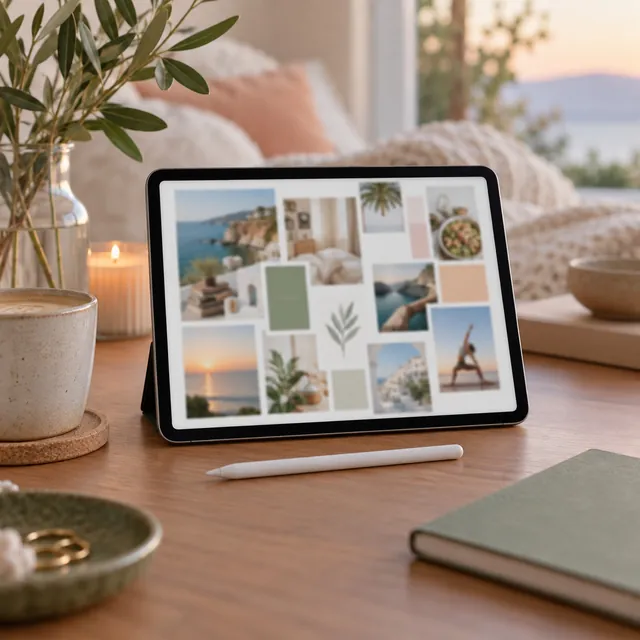
Digital vision board pack for GoodNotes
PDF + PNG stickers for GoodNotes and Notability
Hyperlinked board pages and 200 digital stickers you drag onto the page.
Coming soon
$9.99
Notify mePrefer to build on screen? Try the free vision board maker.
More vision board ideas
Get 20 free vision board images
A printable PDF of pictures, words and quotes, sent to your inbox.